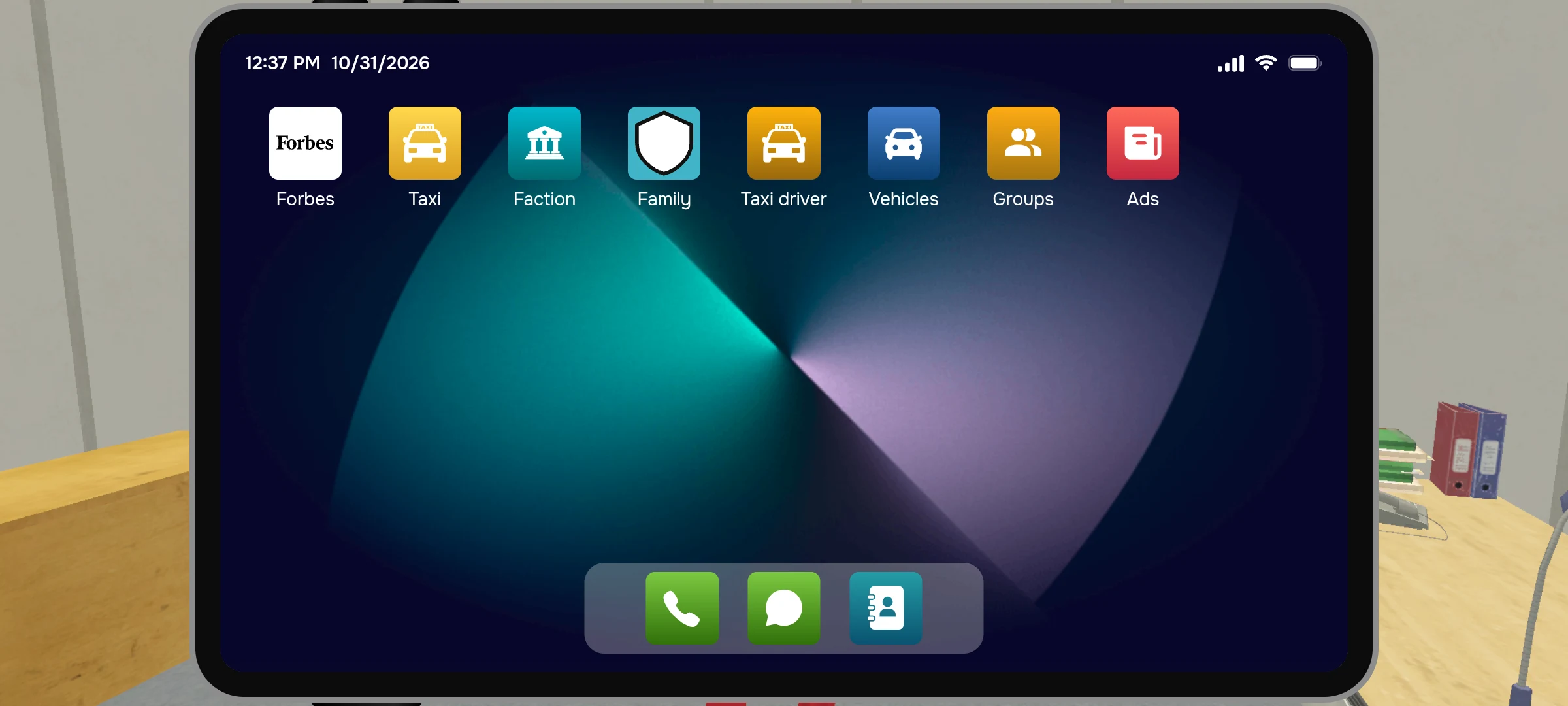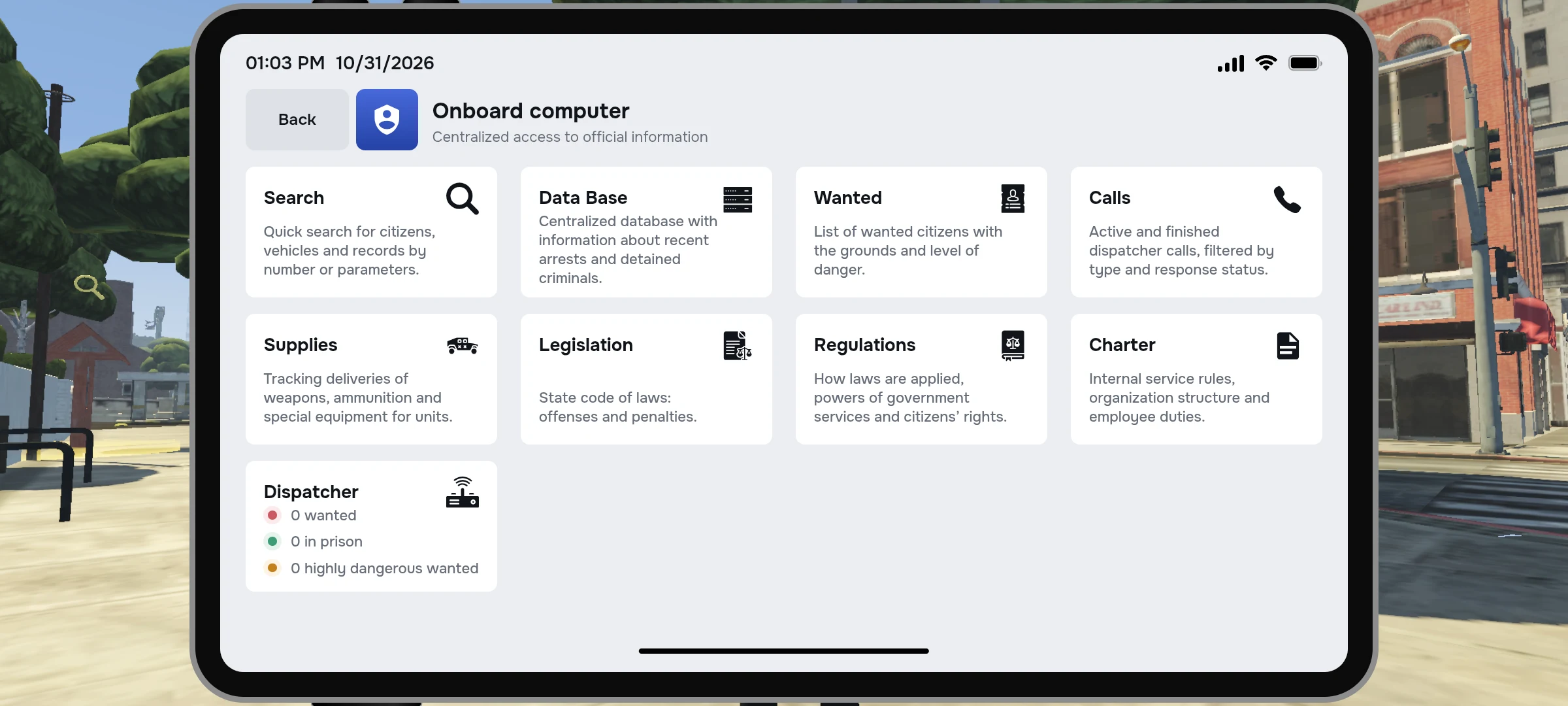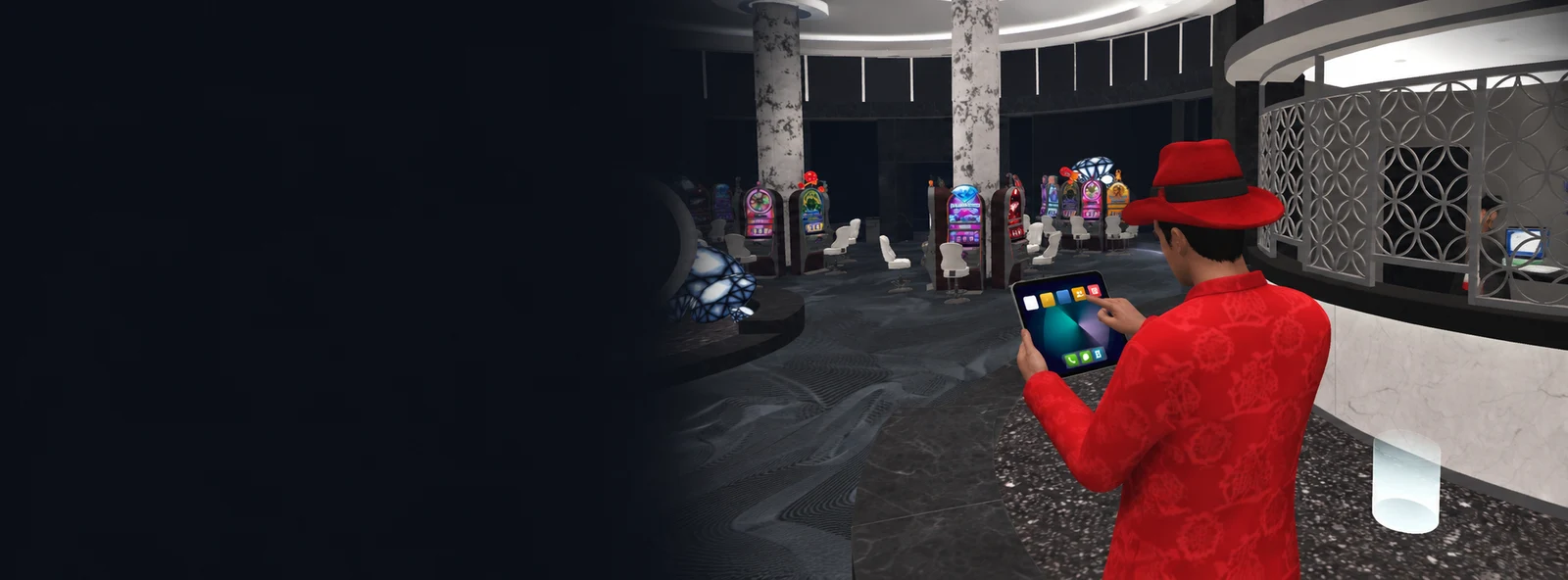
Your tablet holds your character’s apps, including vehicles, ads and the phone. To check your tasks, open the game’s main menu.
Finding the right app
- Open the tablet.
- Select the app you need.
- Read the details on the screen, then choose an action.
- When you’re finished, go back or close the tablet.
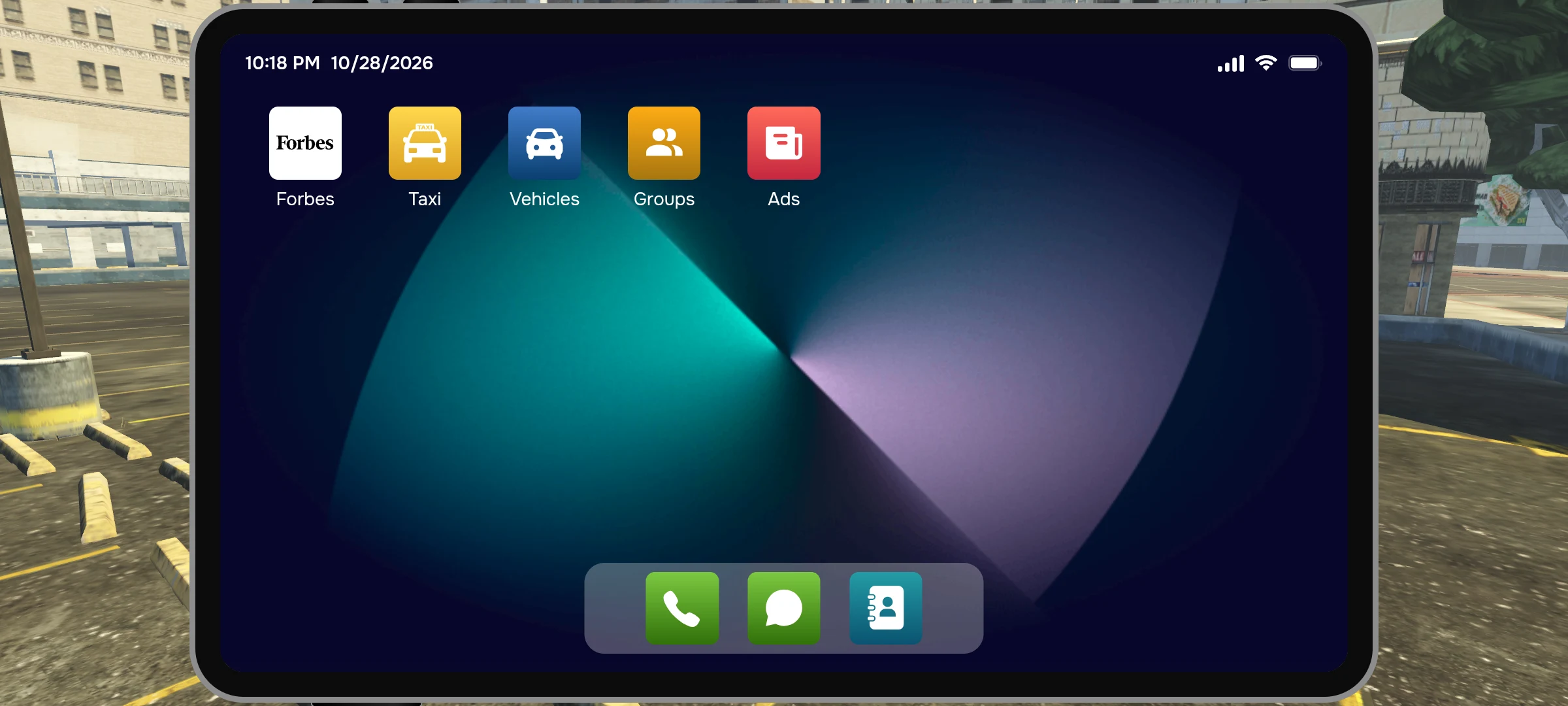
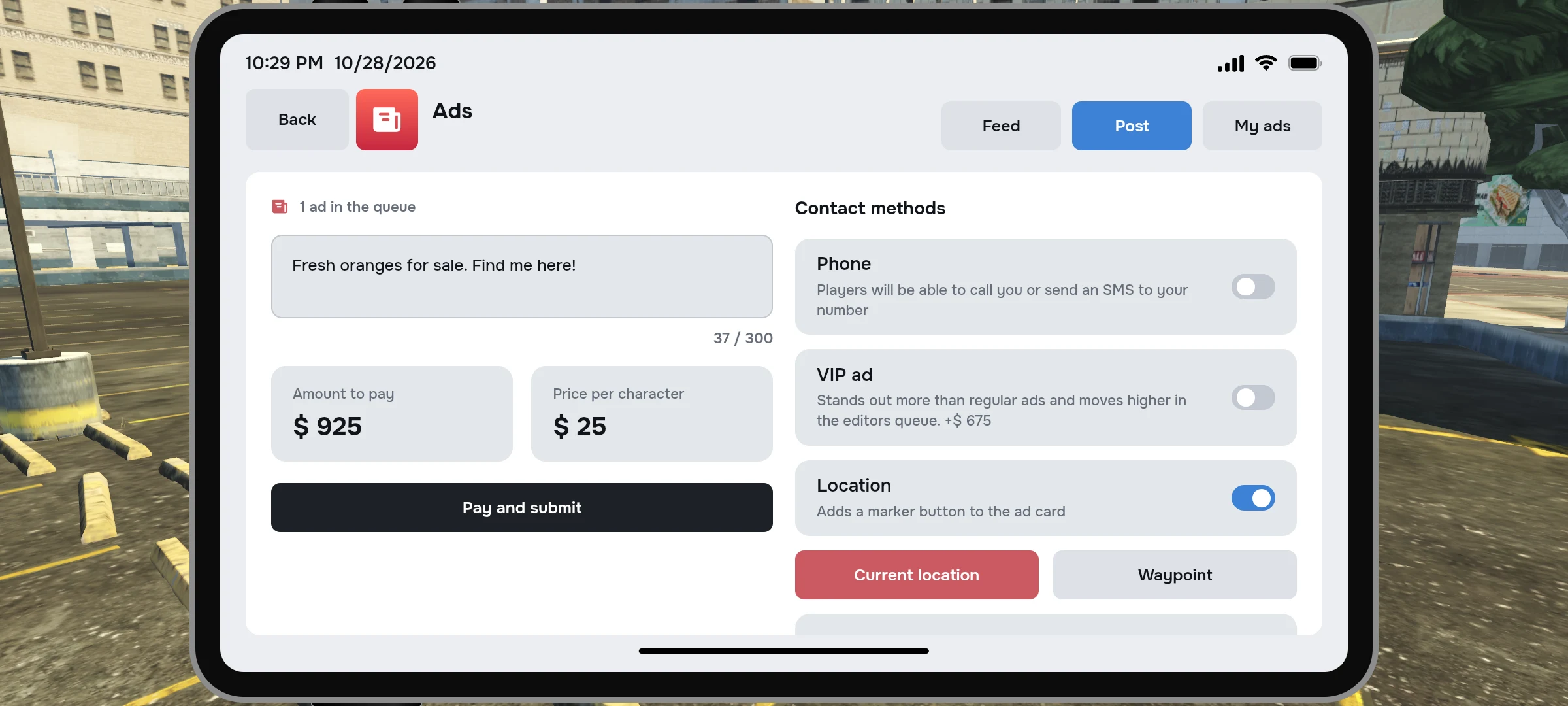
Some apps appear or become useful only after you join a faction, buy property or start a job.
What you can do
| Task | Guide |
|---|---|
| Make a call or save a number | Phone |
| Find your own car or a rental | Vehicles |
| Post an ad | Ads |
| Check the faction roster and tasks | Faction app |
The last app becomes available once you’re in a faction and have permission to use it.
Why can’t I see an app?
| App | When it appears |
|---|---|
| Family | After you join a family. |
| Faction | After you join a faction. |
| MDC database | For government factions, you must be on duty. Lifeinvader has its own access permissions. |
| Job app | After starting an eligible job, such as driving a taxi, bus or cash van, or delivering freight. |
| Business or property | When your character owns the relevant business or house. |
Even when an app is visible, individual actions may require a particular rank or permission. If an app disappears, check your job, faction or family membership, and whether you’re on duty.
Family permissions and storage · Service database